
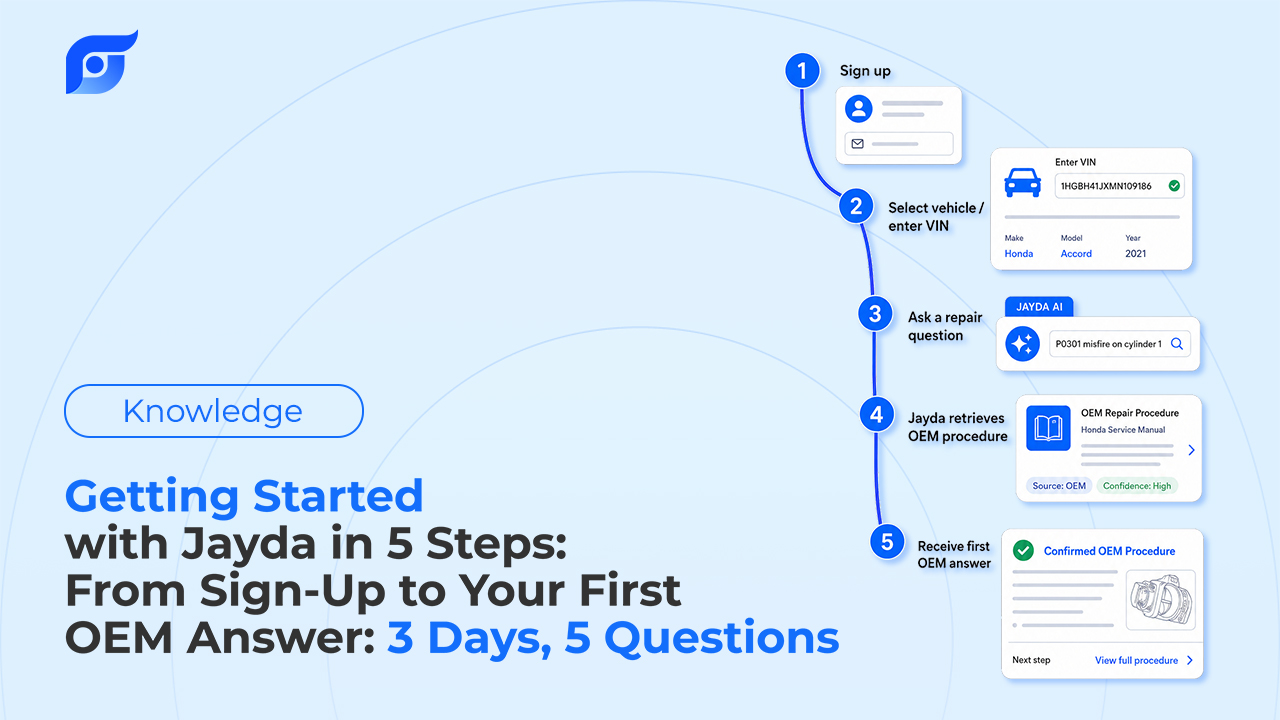
Five steps, most of them under a minute, stand between creating an account and having a cited OEM answer for your first vehicle. Here’s exactly what happens at each one.
Step 1: Sign Up and Choose a Plan
Sign-up starts with picking a plan — which one depends on how you actually work: one vehicle at a time, a rotating set of customer vehicles, or a full team needing shared access. Checkout comes right after plan selection, before you ever see the app itself.
Step 2: Find Your Vehicle
Before anything else, you’ll go through Find My Vehicle — this step is required before the app opens. There are two paths: search by VIN, or search by year, make, and model.
Entering the VIN auto-fills the submodel and engine from the decode, and that match locks in — it’s not editable afterward. Skip the VIN and you’ll select the submodel and engine yourself. Either way, this step is what makes every answer that follows specific to your exact vehicle instead of a general match for the nameplate.
Step 3: A Short Wait While Your Vehicle’s Data Gets Set Up
Right after your first vehicle is added, there’s a brief prep window — typically under a minute — while its data gets set up before you can ask your first question. It’s easy to expect instant, but that short pause is a sign something real is happening behind the scenes for the exact vehicle you just added, not a generic placeholder loading.
Step 4: Ask Your First Question
Once your vehicle is ready, you’re not handed a menu to navigate — you’re prompted to ask something. If you’re not sure where to start, a few common jobs make good first questions: a brake pad replacement procedure, oil change specs, or a battery replacement — the kind of question you’d ask in your own words, not the manufacturer’s internal terminology.
Step 5: See the Cited Answer
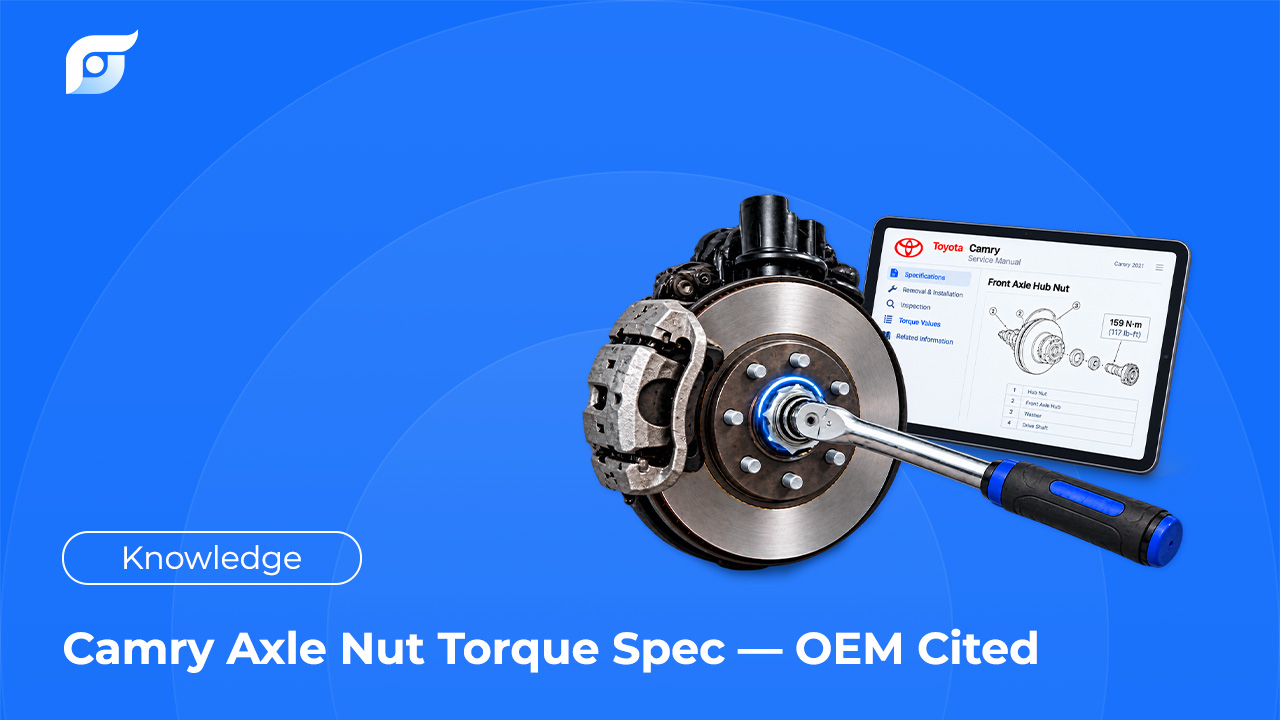
The result that comes back shows the source alongside it — the OEM manual it came from, via MOTOR Information Systems — so what you’re looking at is unedited manufacturer content, not a generated summary. That first result is also the moment the app is built to make land: comparing how fast that answer arrived to how long the same lookup used to take on whatever you were using before.
What to Do Next
From here, add more vehicles as you need them, try a question from a different one of Jayda’s 12 OEM data categories — a wiring diagram or a TSB instead of a spec — and if you’re evaluating this for a team rather than yourself, that’s a separate setup path worth looking at directly.
Frequently Asked Questions
Do I need a VIN to get started? No. Year, make, and model alone gets your vehicle added — the VIN just adds automatic submodel and engine matching on top of that.
What if I make a mistake entering my VIN? Since the submodel and engine lock in once they’re auto-filled from a VIN, it’s worth double-checking it before confirming. If it’s wrong, the vehicle needs to be re-added rather than edited afterward.
Is there a free trial? Pro Tech includes a 3-day, self-serve trial with up to 5 questions — no contact required to start.
Can I add more than one vehicle? Yes — the getting-started flow above covers your first vehicle; adding another follows the same VIN or year/make/model process from your garage.
Ready to see it for yourself? Start a free trial and have your first cited answer in under five minutes.